Pad Aware UI
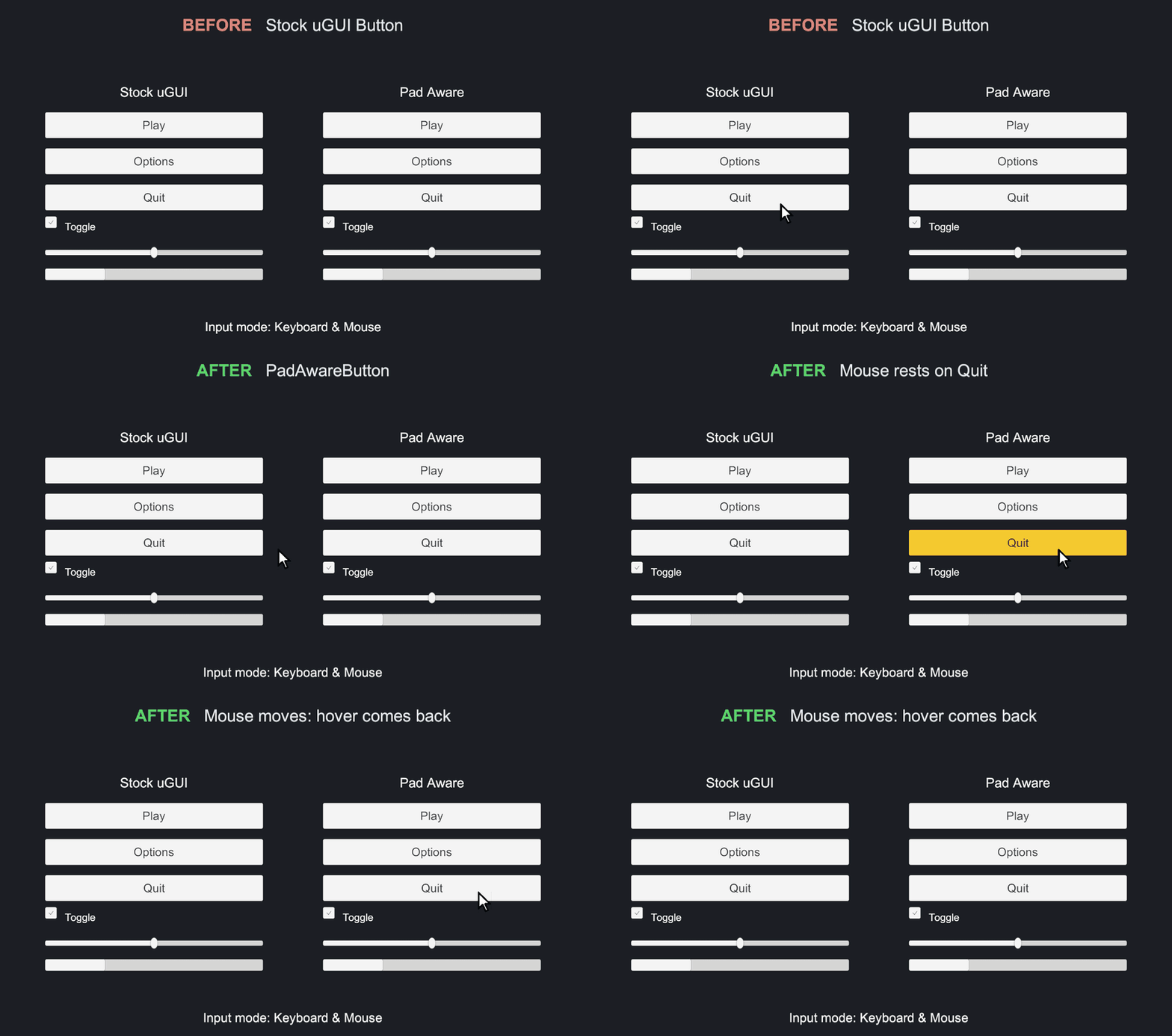
Your player picked up the gamepad. The button under the mouse never noticed.
Drop-in uGUI Button, Toggle, Slider and Scrollbar that hide the stale hover highlight while the gamepad is in use, so only one item looks focused.


Quick start · The problem · How it works · Your own input detection
🐛 The problem
- The mouse cursor rests on a button, so the button is Highlighted.
- The player picks up the gamepad and moves the Selected state to another button.
- The cursor never moves, so no pointer exit arrives. Both buttons now look focused.
Unity has closed reports of this as By Design or Won't Fix. The common workarounds break something else. Setting Navigation to None breaks gamepad navigation, and making Highlighted look like Normal removes mouse hover feedback.
🚀 Quick start
1. Install. In Package Manager, choose Install package from git URL and enter:
https://github.com/schyro/unity-pad-aware-ui.git#v0.1.1
2. Enable the Input System. Set Project Settings > Player > Active Input Handling to Input System Package (New) or Both.
3. Use the Pad Aware components.
- New controls: in Add Component, pick UI > Pad Aware > Button (or Toggle, Slider, Scrollbar).
- Existing controls: switch the Inspector to Debug mode, drag
PadAwareButtononto the component's Script field, then switch back to Normal. Each Pad Aware type is a subclass of the stock one, so every setting and event is kept.
That's it. Navigation, events and Inspectors work the same as before.
🔧 How it works
Each component overrides one method of the stock control:
protected override void DoStateTransition(SelectionState state, bool instant)
{
    if (state == SelectionState.Highlighted && PadInputMode.UsingGamepad) state = SelectionState.Normal;
    base.DoStateTransition(state, instant);
}
When the input mode changes, the component re-applies its current state. The hover look disappears the moment the gamepad is used and returns when the mouse moves.
PadInputMode tracks the last device the player used:
| Switches to gamepad | Switches back to keyboard and mouse |
|---|---|
| Stick past 0.5, d-pad or any button | Any key, mouse movement over 3 px, click or scroll |
🧩 Your own input detection
If your project already tracks the active device, turn off the built-in detection and set the mode yourself:
using Schyro.PadAwareUI;

PadInputMode.AutoDetect = false;
PadInputMode.SetUsingGamepad(playerInput.currentControlScheme == "Gamepad");
You can also read PadInputMode.UsingGamepad and listen to PadInputMode.Changed in your own scripts, for example to hide the cursor or swap button prompts.
📝 Notes
Dropdown,InputField,TMP_DropdownandTMP_InputFieldare not included. The same override works for anySelectable: copyPadAwareButton.csand change the base type.- Keyboard input counts as keyboard-and-mouse mode, so the hover highlight stays during keyboard navigation.
MIT License · made by schyro